Express V2 Wi-Fi setup & online operations help
Important!
The Express Box is an offline device, but for reliable operation (and protection), it must always run the latest firmware version. If a new version is available, it automatically downloads and installs it via the user-configured internet connection. The installation does not interrupt work, it only runs during startup, is shown on the display, and takes about one minute.
First use, setup the internet connection on Express
The Express can be used without an internet connection initially, but it is recommended to set up internet access as soon as possible for stable and continuous operation, and to avoid warnings about missing connectivity or potential device lockouts. (It does not require a continuous internet connection and can work offline for long periods of time, but it needs to go online occasionally for updates and protection.)
1. Power on the Express by connecting a 12V power supply (compatible with standard tuning tool PSUs).
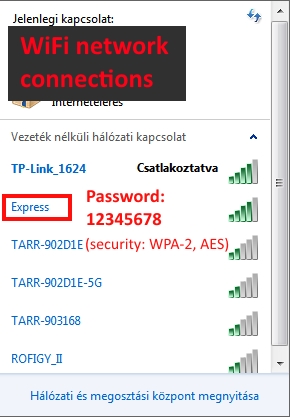
2. Wait 10 seconds, then open the wireless network list on your PC or phone where you can see the available Wi-Fi networks. You should now see a new access point named “Express”. Select it and enter the password “12345678”. If the connection is successful, the device switches to normal Wi-Fi mode and its network name disappears from the list.
Opening the configuration page and setting up internet access
After a successful connection, the “Express” network name will no longer appear in the list because the device is now connected to yours.
Next, open your browser and type 192.168.1.4 into the address bar. After loading the page, you will see the configuration screen.
Here, enter the name and password of your Wi-Fi connection, then press “Connect”.
If the internet connection is set up correctly, the blue LED on the Express will turn off and will occasionally blink to indicate that it is online. When data is being transferred (downloading updates), the LED will blink continuously.

Warning screen and what to do when you see it
If the Express is in use and there is no active internet connection for long time:
at first, it will not show any message,
if this continues for a longer period, it will show a warning screen at startup (for 3 sec) asking you to set up the connection,
if the issue continues, you will need to press a button to proceed,
you will also see a countdown at the bottom, if the device still cannot connect, it will lock itself and will not be usable. – only after setup the internet and check the news on the server

Troubleshooting and reconfiguration
After a successful setup, neither the configuration page nor the Express network will be visible anymore. The occasionally blinking LED indicates that the internet connection is active.
If the saved network settings become outdated (for example, the device can no longer connect with the stored Wi-Fi credentials), the device will switch back to Access Point mode and will appear again in the Wi-Fi list. After connecting to it, the configuration page can be opened again and new internet settings can be entered.
What if you work at multiple locations or have multiple internet networks available?
Nothing special is required. Since a permanent internet connection is not necessary, it is enough to configure just one. The only important thing is that the device can occasionally reach our server. Even if this happens only once a week, the operation will remain smooth and uninterrupted.
Click here if you need any assistance.