Express V1 firmware update
1. Version overview
(Váltás magyar nyelvre – switch to hungarian language)
The Express V1 is the first generation device, which still has 2x DB15 and a USB ’B’ connector. These must be updated manually (offline) as described below.
The Express V2 is a newer edition (which already has only one DB15 and a micro-USB connector), updates online automatically, no action is required with these.
2. Update procedure for Express V1
On Express V1 units the update is performed via USB, using the upload application already sent by e-mail and the attached firmware files.
Check the current version on your Express in its ‘About’ menu. If it is lower than V1.30 it must be updated.
Required tools
- USB cable (optional 12V power supply connection)
- Upload application (already sent)
- Firmware files (already sent)
Steps
- Connect Express to the computer via USB.
- Launch the upload application.
- Select the correct COM port
- On the left panel of the program (Firmware Update section) browse the latest MCU1 firmware file. (e.g. ExpressV1_Firmware_v1p30_MCU1_20260111.hex) Important: if you accidentally drag the file into the right panel (Configuration) and write it, the device will be damaged, can only be repaired locally, return shipment required! Always use the left side panel!)
- Press the ‘Connect’ button
- Press the ‘Write firmware‘ button
- After successful writing press the ‘Exit bootloader’ button
- The update is now complete.
If the process is interrupted or shows an error, also connect the 12V power supply and try again.
With the above steps the MCU1 (the primary processor) update is completed. (If the internal jumpers were in the right side MCU1 position), this is the default.
3. Express V1 – MCU2 update (only if necessary)
Only update the MCU2 if the following ECUs do not connect
- Simos 8
- Simos 12
- other Siemens / Continental systems
Disassembly of the device
- Remove the warranty sticker (if present).
- Unscrew the 5 screws.
- Carefully lift off the top cover.
- The PCB should remain in the lower plastic housing.
- (Do not touch the screen or protective glass)
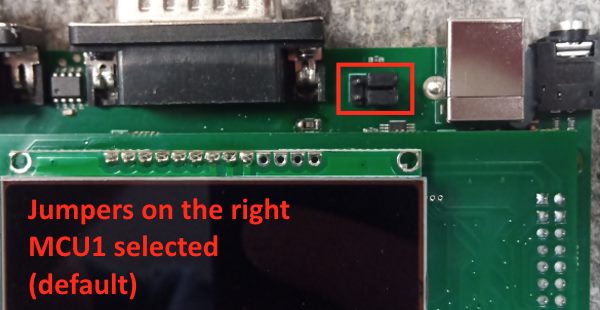
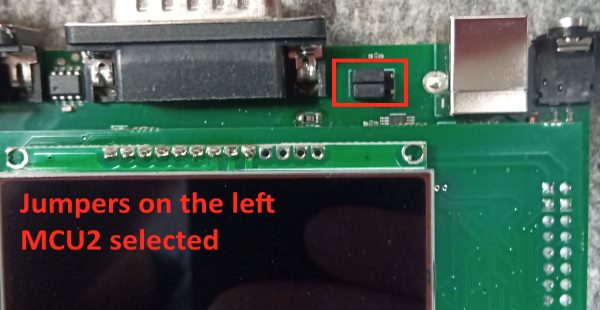
Jumper adjustment
- Above the display on the right side you can see two jumpers
- These are by default in the right side position. (MCU1 selected)
- Note how they were positioned (orientation is important, take a photo).
- Remove both jumpers and move them (temporarily!) to the left position. (MCU2 selected)
Firmware upload to MCU2
Same steps as above, just browse the MCU2 file (e.g. ExpressV1_MCU2_fw_202601_simos-fix.hex) in the same way and write it. MCU2 is now completed as well.
Reassembly of the device
- Important! Move the jumpers back to the right side position as they were. (If you leave the jumpers in the left position, operational issues may occur.)
- Optionally clean / dust the display, inner window
- Put the cover back on and screw it together.
Check the news and release notes here.
If need assistance, conatact support.