How to use Express Cable
User’s Manual
How to use Express Cable
- The menu of Express and operation
- The structure and items of the menu
- ‘Recently used’ submenu
- ‘About’ submenu
- Select ECU brand
- Select ECU type
- ECU with multiple wiring variations
- How to select the good wiring variation?
- Connecting a tuning tool and DC12V
- Connecting a Cx cable
- Connecting an ECU
- Troubleshooting, warning and error messages
The menu of Express and operation
Control
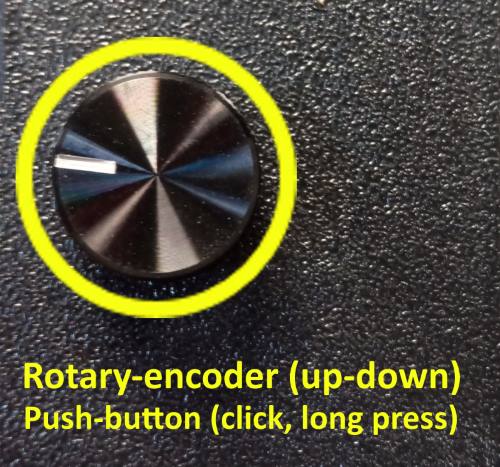
Express has a simple and easy to use menu. You can navigate in it by rotating the encoder button.
- To select an item press the knob shortly.
- ‘>’ sign enters into that submenu.
- ‘<‘ sign (mostly in the header) goes one level up.
- anywhere keep the button pressed for 0.5 sec (long press) it jumps back to the main menu.
In a submenu If the selector is moving up it will jump up to the header. If you keep the encoder rotating the menu items are continuing scrolling up. If you’d like to select one, have to move one or some steps down.
This behavior of the control helps quick quit from the submenu because of the selector bar stays on the header while scrolling up, so you can click it anytime and go one level up.
The structure and items of the menu
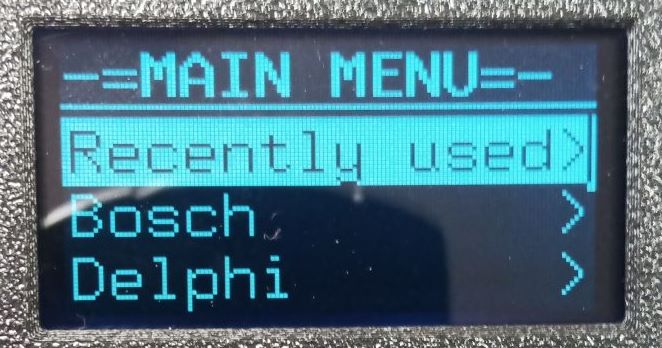
The top row is the header. It shows where you are.
At the right edge of the display there is a ‘scroll-bar’. Its size is changing and shows the length of that sub menu you are in.
There are only 2 of special submenus: ‘Recently used’ and ‘About’. All the rest are the known ECU brands.

‘Recently used’ submenu
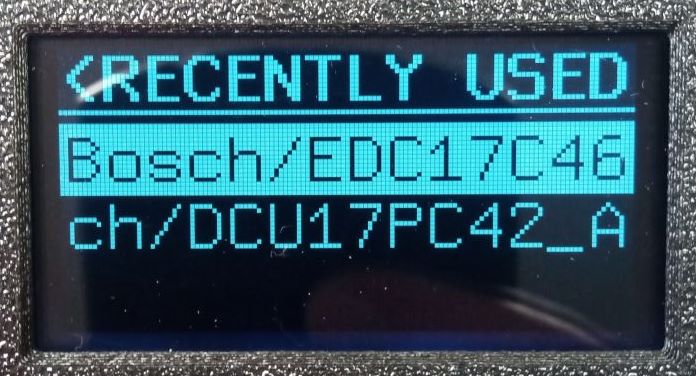
It assists you with easy access to the last used (selected) ECUs. It has the list of the last selected 5 ECUs. By entering the ‘Recently used’ submenu, just click that one you’d like to use again.
- The order of the ECUs is NOT always the same order of their selection.
- If the length of the row is too long, if you select it will be scrolling (automatically) to show all info.
- Express retains this list at power loss, so next time when you’ll power it up, also will find your lastly used ECUs.
‘About’ submenu
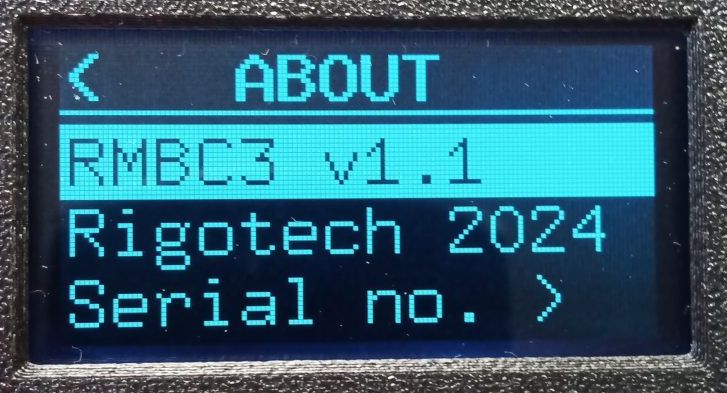
It shows:
- the current firware version that is on Express,
- copyright info,
- a submenu where (by clicking on it) you’ll find Express’s serial number.
The serial number is unique in all Express boxes, and we need to know when it is needed to change the configuration of your tool. (For example adding extra features like CAN-support, or activate further ECUs.
Select ECU brand
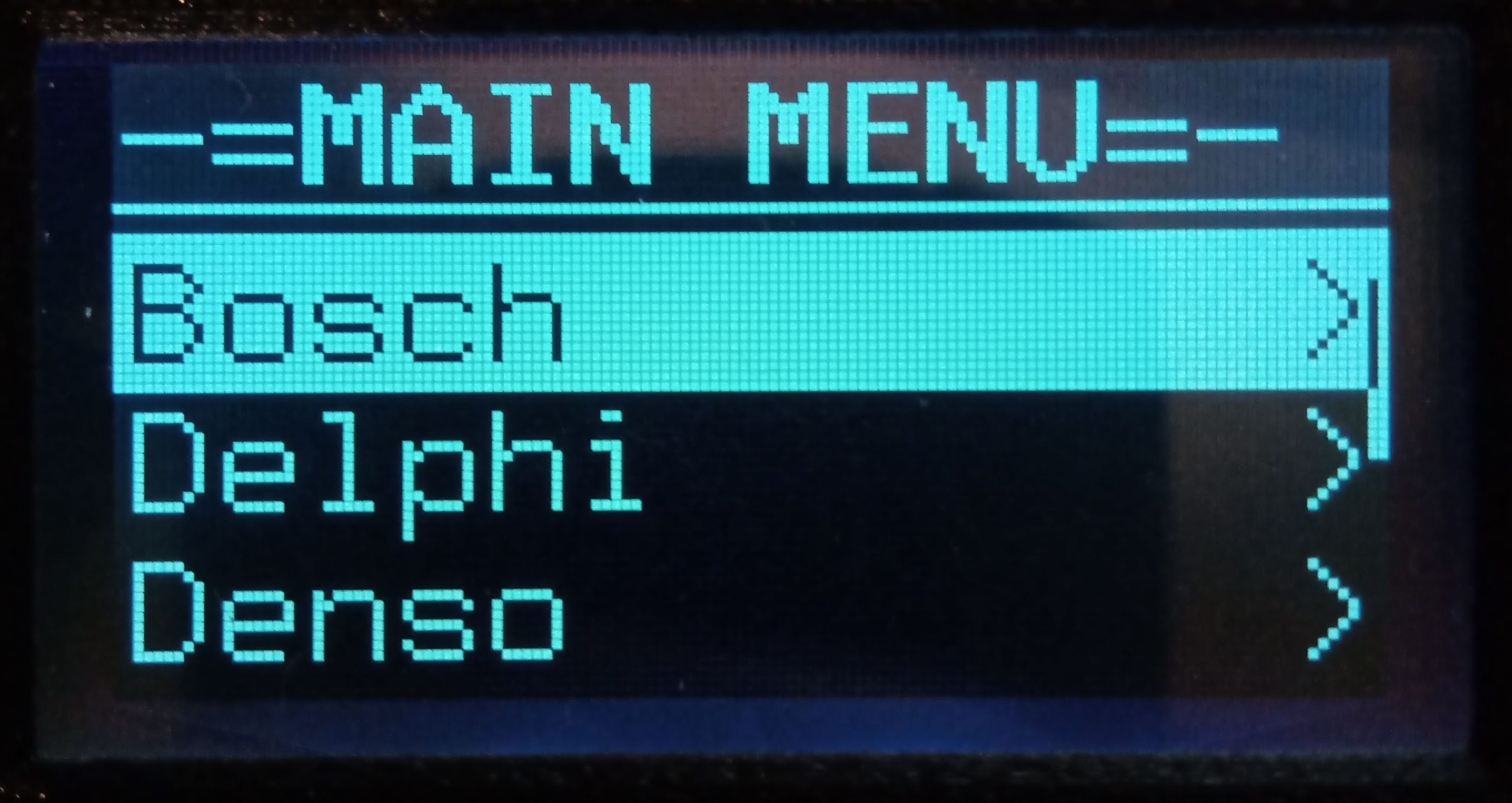
From the ‘Main Menu’ you can enter the submenus for all supported ECU brands, like:
- Bosch
- Delphi
- Denso
- Kefico
- Magneti Marelli
- Siemens / Continental
Pre-select ECU type
In total there are more than 380 ECUs in the menu. To make the selection quicker we’ve introduced this intermediate step called ‘pre-selector’ of ECU type.
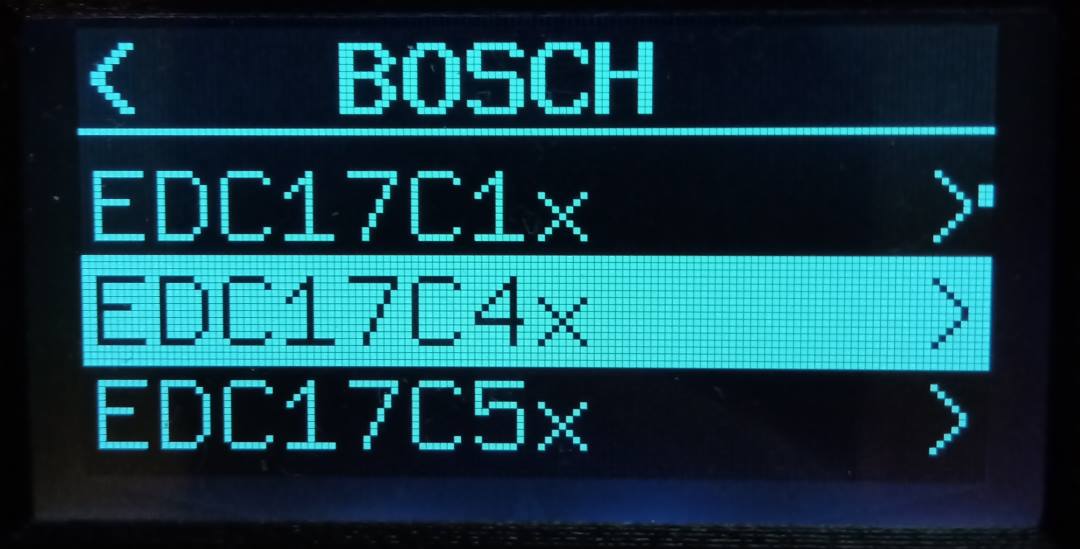
After selecting the ECU brand, you’ll see the list of ‘pre-selectors of ECU type’.
For example under ‘Bosch’ you’ll see several pre-selectors like
- EDC17C0x
- EDC17C1x
- EDC17C4x
- EDC17C5x
With this method you don’t need to scroll trough tens or hudreds of ECU-s while yours come up. First select its “group”, and after entering, you’ll find quickly yours.
Select ECU type
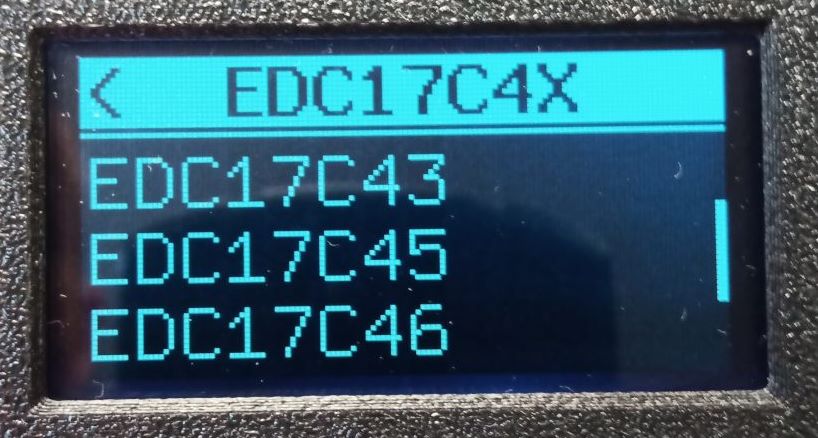
After entering into the pre-selector, just some last steps to find your exact ECU type.
For example under EDC17C4x pre-selector appears all of the supported Bosch EDC17C4x ECUs like EDC17C41, EDC17C42, … EDC17C49.
These are not always in alphabetical order so if you may don’t find yours where you expected, please scroll through the full list under the pre-selector. For example the MED17.5.5 comes earlier than MED17.5.
Click on your ECU to selcet.
ECU with single wiring scheme
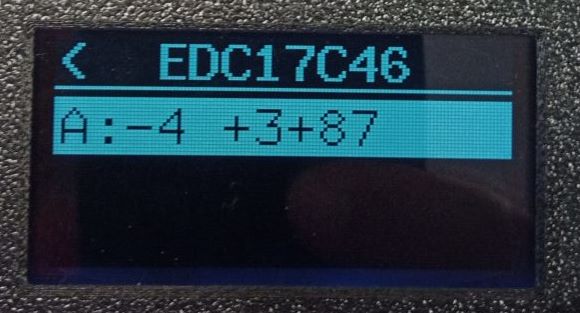
Most of ECUs have only one wiring scheme (wiring variation), that is maked with a letter ‘A’.
Select it, and in the background some tests start automatically. If all is OK, your connection is ready in 3 sec, so you can press ID and perform other operations on your tuning tool.
ECU with multiple wiring variations
Some ECUs like EDC16C39 used by more car brands, and has different pinouts under GM, FCA, and others. Express includes all of the known wiring variations, and you have to select the good one.
Express always shows the pin position numbers where will switch the ground and +12V lines. It may help in selection of the appropriate wiring variant by take a look at that. Although many times the power pins are at the same location (only the communication and GPTs changed) so it doesn’t help. (Express shows only the pin numbers, and there is no info about which ECU connector they belong to, but when you do compare those are obvious.)
Sometimes there were duplications in the list of variations, because of for example at one tool’s manual the GND is on pin4, at the other it is on pin5. We filtered these duplications where it is confirmed both are okay. This is why maybe there are slight differences on the displayed numbers compared to your tool’s wiring scheme.

How to select the good wiring variation?
When the selected ECU has more different wiring schemes they are listed and marked with letters A, B, C, D, … (only the first 3 will be shown on the display, but take a look at the scrollbar at the right, and you’ll know if there are more variations, and you may need to scroll down the list to see for example variant ‘D’ and the others.
If you don’t know which is the working one for your ECU select the ‘A’. If there is no communication select ‘B’ and the others. One should be good. If none are good, start troubleshooting.
Connecting a tuning tool and DC12V
If you have Autotuner simply put them together. If they lie on a smooth surface like a table, it is better to remove its protective silicon case. (If it obstructs the connection, also remove it.)
Since there is no better ‘lock’ option If there is risk of disconnection use a rubber band that will keep them together.
For other tuning tools you need its adapter cable for connection. (Available adapters are here.)
- connect (and lock) the adapter to the tuning tool
- connect (and lock) the adapter to Express box
- connect the power extension cable to Express (its other end there is the T-splitter)
- plug the T-splitter (with power extension cable) into your tuning tool
- plug your power supply plug into the T-splitter
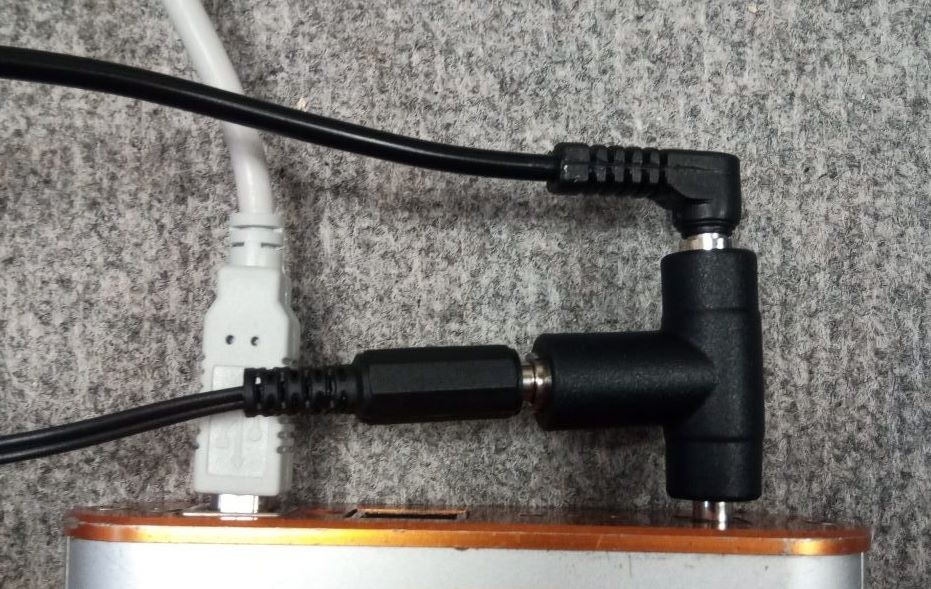
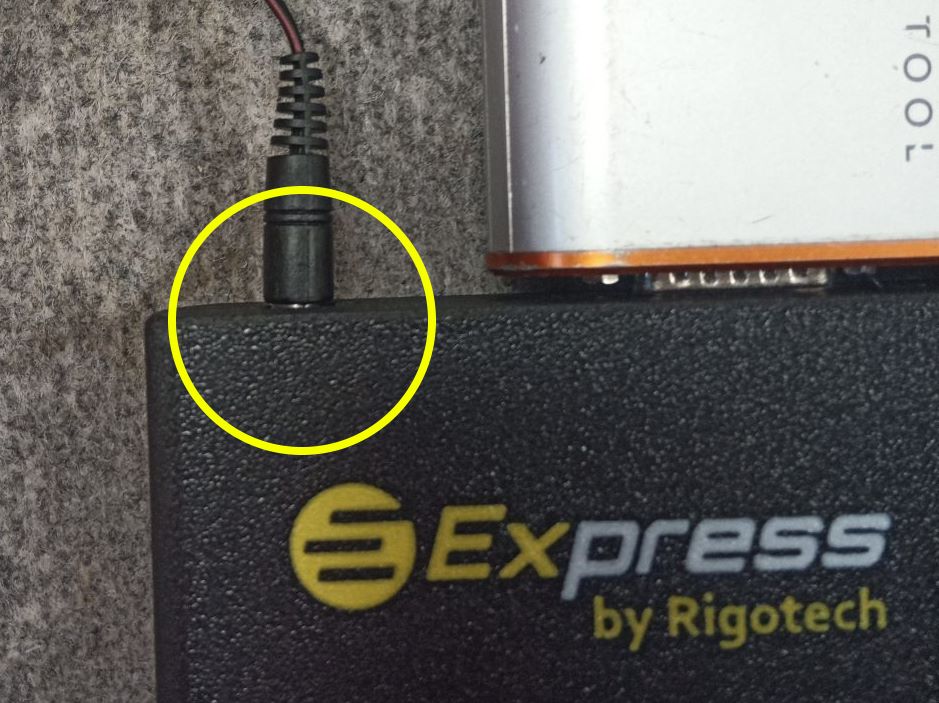
Connecting a Cx cable
There are 2pc of 50 pin Centronics connectors on the front of Express. You need to connect the appropriate Cx (for example your C1, C2, ..) cable.
You have to unplug the DC power or turn off the PWS when replacing or connecting the Cx cable.
You can try to do it while the Express is powered up and in idle state (nothing is in progress). But sometimes maybe the Express software (menu) will freeze due to all Cx cables has an active electronics inside, that frequently communicates with Express box. If you catch a wrong moment and some communication aborts, it may cause the freezing. In this case you have to reset the Express by turning off/on its power.
Express will check the connectors and sends messages if something is not ok. You should connect ‘A’ connector to the ‘A’ socket, and ‘B’ to ‘B’.
Protect the sockets and plugs!
In order to protect the connectors, do not use a lot of force when unplugging and plugging. If possible, clamp the Express down on the table, then move the plug up and down and left and right as you pull it off or plug it in.
Without this movement, if you push the connector into place with great force at a given angle, the contacts will bend and be damaged. Such cases are not covered by the warranty.
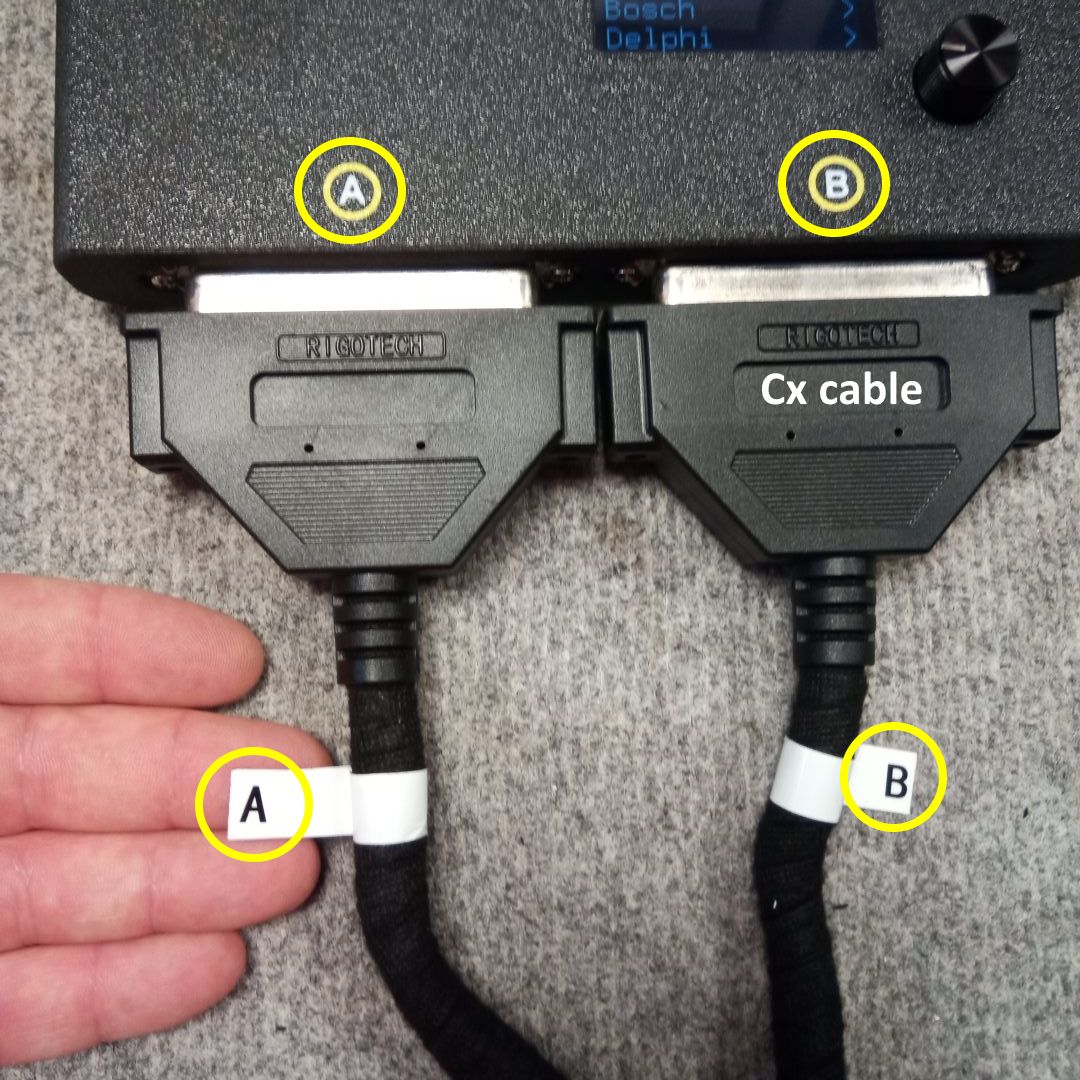
Connecting an ECU
Later when you’ll be familiar with using Express and will know which Cx cable to be used (simply can check by take a look at its connectors…) it’ll be a matter of seconds to complete all the connection processes.
This is the longest failsafe procedure:
- unplug the Cx cable from Express if connected, and you need to use another kind of Cx cable
- look up the ECU in the menu of Express
- if there are more than 1 variant under the selected ECU at first choose the first variant marked ‘A’
- Express displays the numbers for the ground and +12V pins of the selected ECU and variant. If you need, can compare those numbers with the pinout of your tuning tool’s connection diagram.
- (if no Cx cable connected) Express will give an error message but will display which Cx cable needed to be used
- Connect that Cx cable. ‘A’ plug to ‘A’ socket, and ‘B’ to ‘B’
- Connect the connectors of the ECU
- If the error message is still on the display, press the button to go back.
- When all are connected, Press the button again for connection test.
- Express reports the result of the test. Maybe gives a warning or error.
- If the connection is ok, you can press ID on your tool
- or also can press the Express’s button to display ECU info
- If the test is failed, you have to check it, and go back by pressing the Express’s button
- If the connection is ok, you can press ID on your tool
- If the connection test of the ECU was ok, but you have no ID, try the next for i.e. ‘B’ and further variant(s) from the menu.
- If it still doesn’t work start troubleshooting, more is info here.
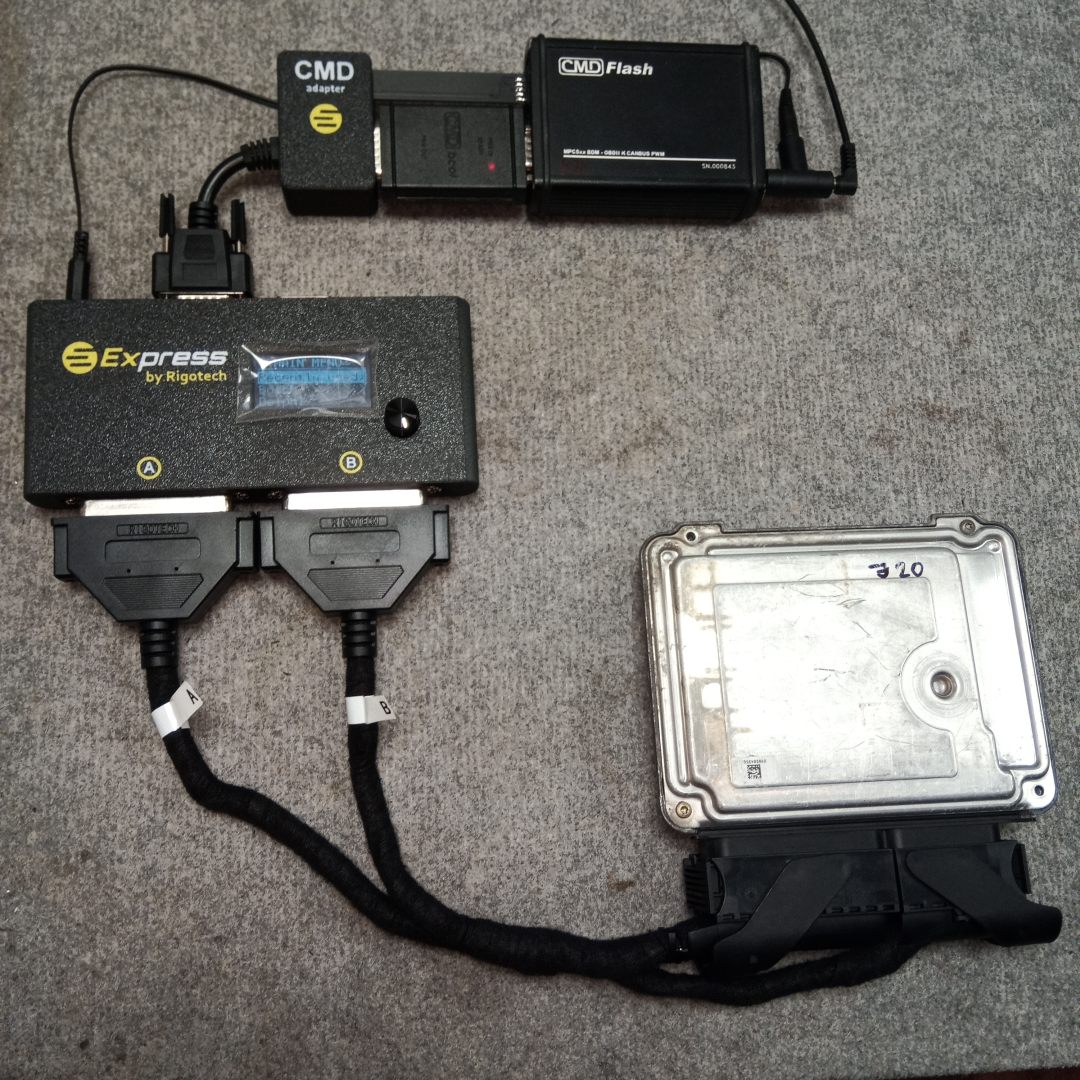
Troubleshooting
ERROR – Short, chk ECU!
From the v1.23 we added a new protection. This is an additional current check when the (tuning) tool turns on the +12V to power up the ECU.
If you’ve selected (and succesfully tested with Express) an ECU, then replaced it to anther one, but forgotten to select/test the new one in the menu that was a risk of killing the second ECU.
This new test checks the starting current at every power on, and if there is too much current or short circuit on the output (thanks to different ECU is connected than selected). In case of fail, cuts off the power within 300 usec and save the ECU.
If this happens, you have to hard-reset Express (unplug the 12V jack, usb (if connected) and also the tuning tool for few seconds and reconnect power and the tool.)
If the problem presists disconnect the ECU and try to select it again (without ECU connected). If you see any error without ECU connected, contact support.